Documentation
Getting started
Everything you need to go from download to your first query — and the features worth knowing about once you're there.
1. Install
Download ByteRunner Setup.exe (v1.0.99,October 4, 2026) and run it. There's nothing else to install — ByteRunner bundles its own JDK 21 runtime, so compiling, running, and debugging all work out of the box.
The installers are code-signed as "Christian Oleson", so Windows shows a verified publisher. SmartScreen may still show a caution on a brand-new version until the signature builds reputation — if so, choose More info → Run anyway. Only download ByteRunner from this site or the ByteRunner-releases GitHub repo.
2. Your first query
Pick a language in the toolbar (Kotlin, Java, Groovy, or Scala), type a few lines, and pressF5. No main(), no project — statements just run. Three query modes are available in the toolbar: Expression (one expression, its value is the result), Statements (the default — a sequence of statements), andProgram (a full program with main()).
3. See results with dump()
dump(value) — or value.dump() — is how anything becomes visible. It's available in every query without imports:
val people = listOf(Person("Alice", 30), Person("Bob", 25))
dump(people, "People")   // a sortable table with a column per property
Collections render as sortable tables, objects as expandable trees, and JSON, XML, and images render natively. An expression query's final value is dumped automatically.
4. Connect a database Pro
Add a connection in the Explorer sidebar — PostgreSQL, MySQL/MariaDB, SQLite, H2, SQL Server, or DynamoDB — and browse its schema. In a query, every table becomes an accessor you can use directly:
Users                                   // SELECT * — rendered as a grid
Users.where { u -> u.age gt 21 }          // typed, autocompleted columns
    .select { u -> listOf(u.name) }
query("SELECT count(*) FROM Users")     // raw SQL when you want it
Want a playground? Browse Samples on the welcome screen creates a bundled SQLite sample database with a guided tour script. On a DynamoDB connection, right-click it and chooseAdd Sample Table: ByteRunner creates a small orders table in that DynamoDB (DynamoDB Local works) and opens a tour of Scan, Query, GetItem and PartiQL.
5. Debug Pro
Click the editor gutter (or press F9) to set a breakpoint, then start from theDebug menu. Step with F10/F11, watch variables live, and evaluate expressions in the Immediate window while paused.
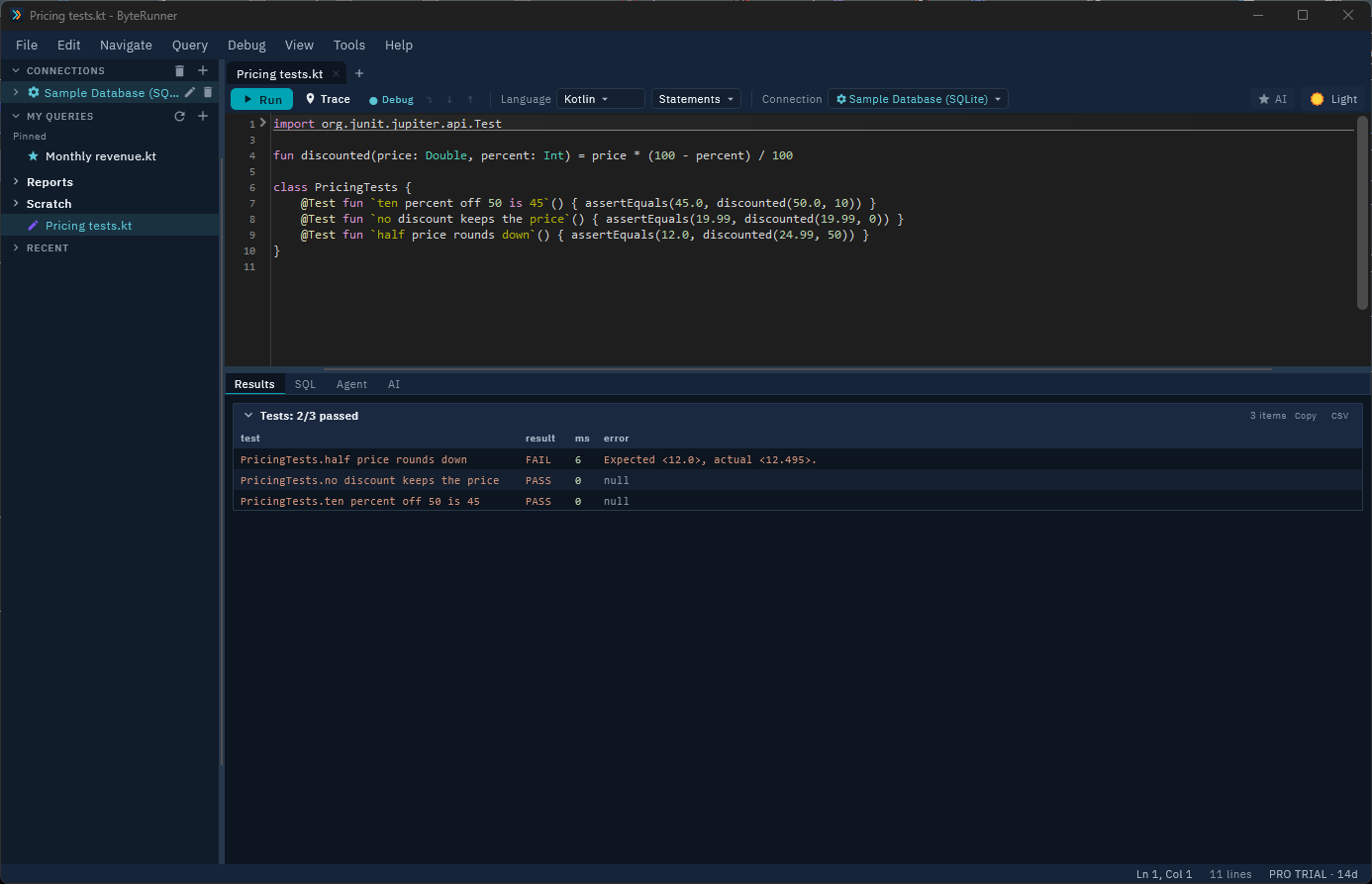
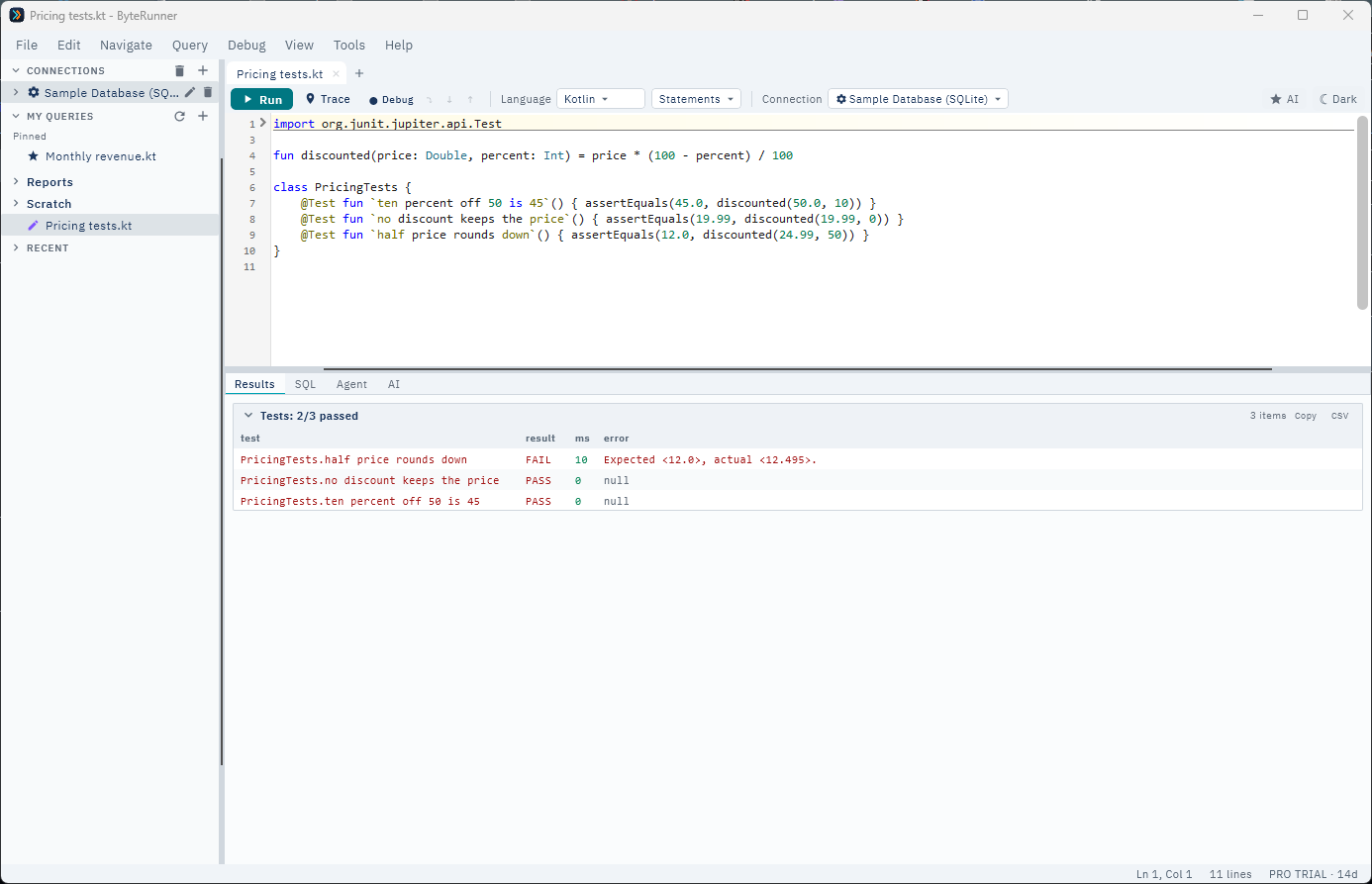
6. Run tests inline
Declare @Test methods right in a query — JUnit's @Test andkotlin.test assertions ship with ByteRunner — and pressAlt+Shift+T:
7. Find your way around
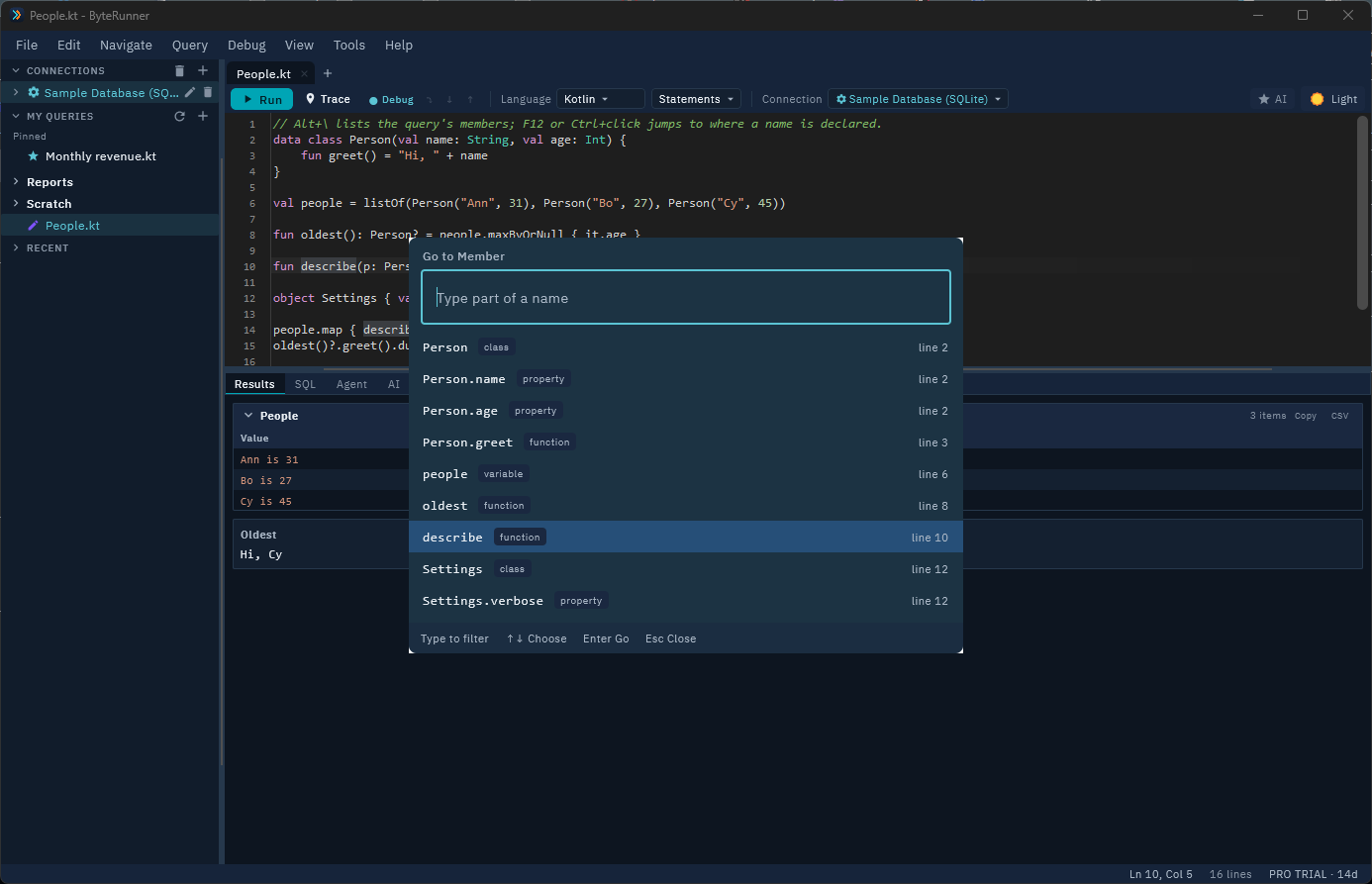
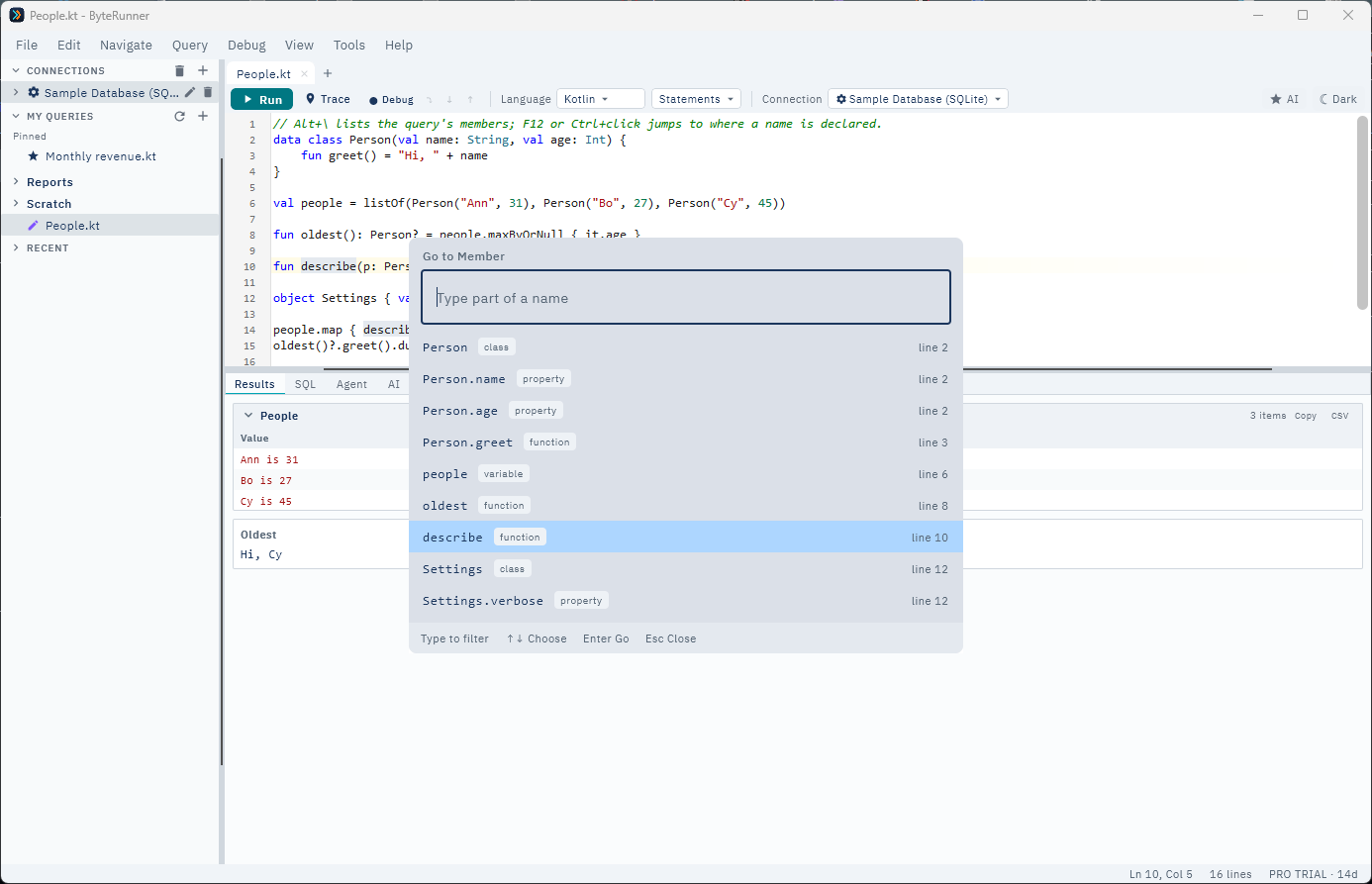
Press F12, or Ctrl+click a name, to jump to where it's declared; forperson.name the compiler works out which class person is.Alt+Left takes you back. Alt+\ lists the query's classes, functions and properties: type part of a name and press Enter. The Navigate menu has the rest, including the next error and Ctrl+Tab between recent tabs.
8. My Extensions
File → Edit My Extensions opens a per-language helper file. Anything you define there — functions, types, constants — is available in every query of that language, no imports needed. Ctrl+S saves; changes apply on your next run.
9. Per-query properties
Press F4 for Query Properties: add namespace imports (likejava.util.*) that apply to every run of that query without writing the import, and see the query's language, connection, and dependencies at a glance. Saved with the query in its .brpad file.
Keyboard shortcuts
| F5 | Run the query |
| Shift+F5 | Cancel a running query |
| Ctrl+Shift+F5 | Cancel and Run (stop the query and start it again) |
| Ctrl+F5 | Run Isolated (killable, separate process) |
| Alt+Shift+T | Run Tests — every @Test in the query |
| F4 | Query Properties (namespace imports, connection) |
| F8 / Ctrl+F8 | Full-screen Results / Results side-by-side |
| Ctrl+R | Show / hide Results (the editor fills the window) |
| Shift+F8 | Show / hide the sidebar |
| F9 | Toggle breakpoint |
| F10 / F11 / Shift+F11 | Step over / into / out |
| Ctrl+F10 | Run to cursor |
| Ctrl+P / Ctrl+Shift+F | Search Scripts (quick-open / content search) |
| Ctrl+, | Preferences |
| Ctrl+N / Ctrl+T / Ctrl+W | New query / new tab / close tab |
| Ctrl+S / Ctrl+Shift+S | Save / Save As |
| F2 | Rename tab |
| F12 / Ctrl+click | Go to Definition |
| Alt+Left / Alt+Right | Back / Forward (also the mouse's side buttons) |
| Alt+\ | Go to Member |
| Ctrl+G | Go to Line |
| Ctrl+Shift+F12 / Ctrl+Shift+F11 | Next / previous error |
| Ctrl+Shift+, / Ctrl+Shift+. | Previous / next function |
| Ctrl+F2 / Ctrl+Shift+F2 | Toggle a bookmark on the line / clear all bookmarks |
| Alt+PgDn / Alt+PgUp | Next / previous bookmark |
| Ctrl+Tab | The tab you used last (hold Ctrl and press Tab again to go further back) |
| Ctrl+PgUp / Ctrl+PgDn | Previous / next tab |
| Alt+Shift+W | Go to Tab — every open tab by name |
| Ctrl+Shift+V | Paste as Escaped String (the clipboard as a string literal) |
| Ctrl+D | Duplicate line |
| Alt+Up / Alt+Down | Move line up / down |
| Ctrl+= / Ctrl+- / Ctrl+0 | Editor font size bigger / smaller / reset |
| Alt+W | Toggle word wrap |
Updates
ByteRunner checks this site on startup and tells you when a new version is available — it never installs anything on its own. Help → What's New shows what changed in your version, and the full history is on the releases page.